
Help ›
Help for the driver
Every user has this help inside the application too — under Help in the menu, always for their own role.
Help for drivers
You use the application straight from your phone — an ordinary smartphone is enough and nothing has to be installed from an app store. Below you will find every step, one at a time, with a picture.
What you see after signing in
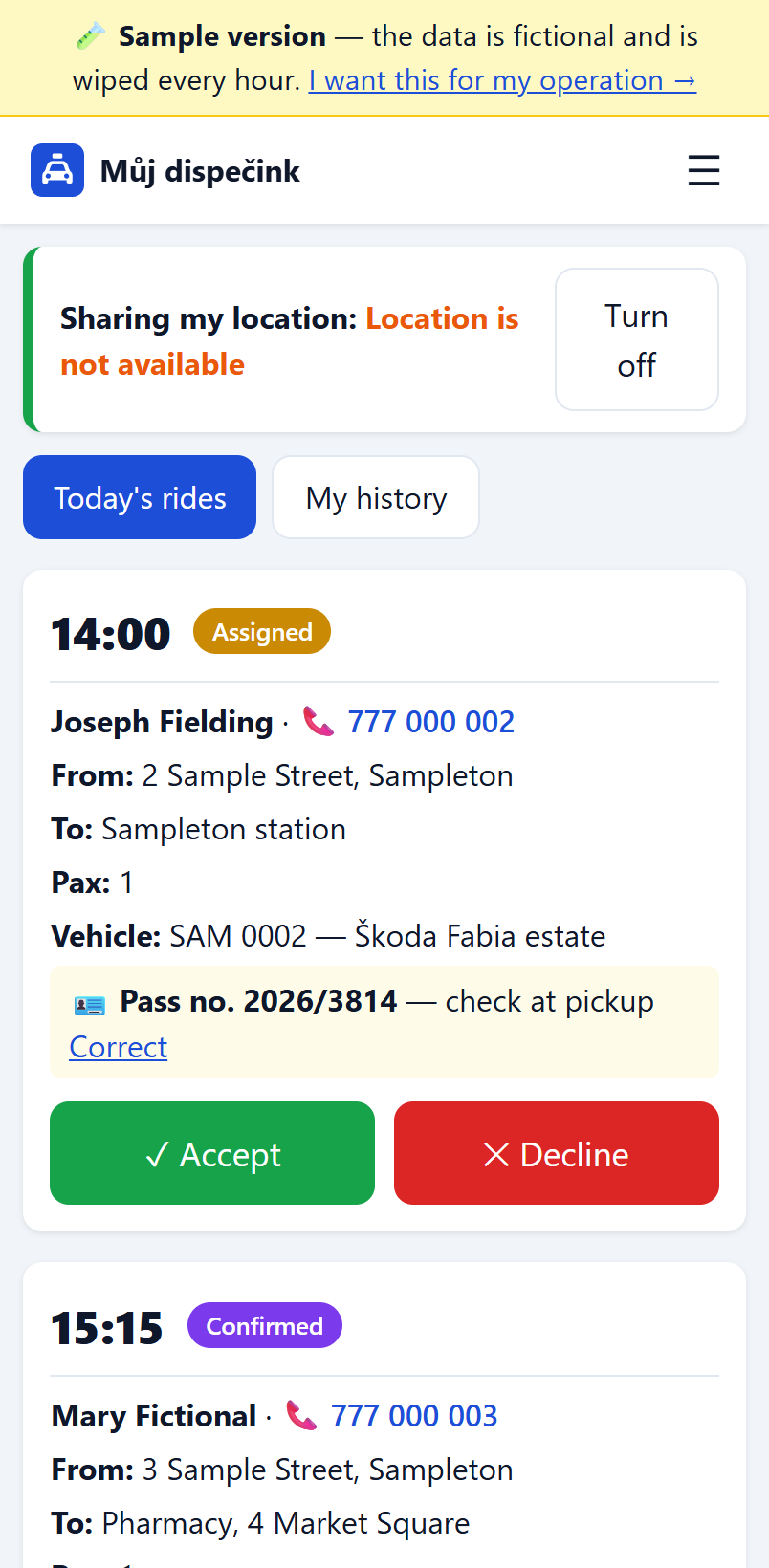
A list of your rides for today. Each ride shows:
- a large pickup time and a coloured status label,
- the customer's name and phone number (tap the number to call straight away),
- where they are travelling from and to,
- the number of passengers and any notes (such as "walking frame, needs help boarding").
💡 Good to know: the list refreshes itself. When the dispatcher assigns you a new ride, it appears within half a minute.
How to sign in on your phone
- Open the web browser on your phone (Chrome or Safari).
- Type the address of the application and tap Go.
- Type your username in the first box.
- Type your password in the second box.
- Tap the blue Sign in button.
⚠️ If something goes wrong: if a red message about an incorrect username or password appears, type it again slowly (watch out for capital letters). If it still does not work, call the dispatcher.
How to add the application to your home screen
The application then opens with a single tap like any other, and notifications work.
Android (Chrome):
- Open the application in the browser.
- Tap the three dots at the top right.
- Tap Add to Home screen (sometimes "Install app").
- Confirm with Add.
iPhone (Safari):
- Open the application in Safari.
- Tap the square with an arrow at the bottom centre (Share).
- Scroll down and tap Add to Home Screen.
- Tap Add.
👀 What you will see: a blue icon with a little car, Můj dispečink, appears on your home screen.
How to turn on notifications (so your phone beeps)
When you turn notifications on, your phone lets you know about a new ride or message even when the application is not open.
- Tap ☰ at the top and then your name.
- Scroll down to Notifications on your phone.
- Tap Turn notifications on.
- The phone asks whether the application may send notifications — tap Allow.
👀 What you will see: the status changes to On.
📌 On an iPhone, note: notifications only work when you have added the application to your home screen (see above) and you open it from there.
💡 If it does not work: never mind — everything in the application works without notifications too, you just need to check it now and then.
When the dispatcher assigns you a ride
A ride with a yellow Assigned label has two large buttons (see the picture above):
- ✓ Accept — tap it when you are taking the ride. The dispatcher sees it straight away.
- ✕ Decline — tap it when you cannot take the ride. Write a reason (such as "car breakdown") and tap Decline ride. The ride goes back to the dispatcher, who gives it to another driver.
When you are on your way to the customer
- Tap 🧭 Navigate to pickup — your phone offers your navigation app and takes you to the address where you collect the customer.
💡 Which navigation opens: the one you have set up on your phone — Google Maps, Waze, Sygic or Mapy.cz. If you have several, the phone asks which one to use and can remember your answer. You do not have to switch anything or learn an unfamiliar app.
💡 You can navigate as soon as the ride is assigned, before you confirm it — useful for checking how far the address is.
- Once the customer is on board, tap 🚗 Picked up.
When the pass number does not match
If the customer has a client pass (with contracted senior transport), the ride shows a 🪪 Pass no. … line — compare it with the pass the customer shows you.
If the number does not match (the dispatcher may have mistyped it), tap Correct next to it, write the correct number and save. When the ride has no number at all, Add pass number is offered.
⚠️ Careful: the pass number belongs to the customer, not to a single ride — the correction therefore applies to their future rides and in reports too. Every change is recorded in the Activity overview (who made it and when), so it can be traced. You can only correct it on a ride you have in progress — not on a completed or cancelled one.
When you are carrying the customer
- Tap 🧭 Navigate to destination — after the pickup the button leads to the destination address by itself, nothing to switch.
- Once the customer gets out, tap the green 🏁 Completed button.
- The Finish ride box appears — enter the distance travelled from your navigation (7.5, for example) and tap 🏁 Finish ride. The price of the ride is calculated from the distance.
💡 Not sure about the distance? Never mind — leave the box empty and finish the ride. The dispatcher can fill in the price later if needed.
👀 What you will see: the ride disappears from today's list and you will find it under My history (with the distance).
⚠️ If you tap the wrong thing: nothing terrible — call the dispatcher, who will correct or cancel the ride.
Location sharing — so the dispatch desk sees you on the map
At the top of the screen there is a Sharing my location box.
💡 Why turn it on: the dispatcher can see you on the map and can give you a ride that is close to you. Only the dispatch desk sees your location, nobody else.
How to turn it on:
- Tap the Turn on button in the "Sharing my location" box.
- The phone asks whether the application may find your location. Tap Allow (sometimes it says "While using the app" — that is the right one).
- The box will show "On — the dispatch desk can see you on the map".
How to turn it off: tap Turn off. Your location immediately stops being sent and you disappear from the map. Turn sharing off at the end of your shift.
⚠️ The screen stays on. While sharing is switched on your phone will not go to sleep — otherwise the position would stop being sent and the dispatcher would see you where you last were. Expect it to use battery, so keep the phone in a cradle on the charger. Switch sharing off after your shift.
💡 If you switch to a navigation app or lock the phone, sending stops — a browser cannot do more than that. It does not matter: your position is sent again every time you confirm a ride, pick a customer up or complete a ride. The dispatcher also sees how old your position is next to your marker.
💡 If it says "Location is not available": the phone cannot determine your location right now (weak signal, location turned off on the phone). Do not tap anything — as soon as the signal returns it sorts itself out. Rides keep working normally.
When the signal drops out
When you drive through a tunnel or the signal is weak, an orange ● Offline — reconnecting… appears at the top.
📌 Do not tap anything. The application reconnects and refreshes everything by itself. Once you see the green ● Connected, everything is fine.
When you want the plan on paper
On the Today's rides screen there is a 🖨 Print today's plan button on the right. It downloads a PDF with all your rides for today — the time, the name, from, to, the phone number and the notes.
Every ride has a tick box you can mark off and a Distance km: ______ line for writing the kilometres in pencil.
💡 What it is for: when the signal drops or the phone runs flat, you have the whole day in your hand on paper. The dispatcher can print the plan for you as well and hand it over with the keys.
⚠️ Paper does not refresh itself. If the dispatcher adds or cancels a ride, it will not be on the printed sheet — so keep working the rides in the application as soon as you have a signal.
How to message the dispatch desk (Messages)
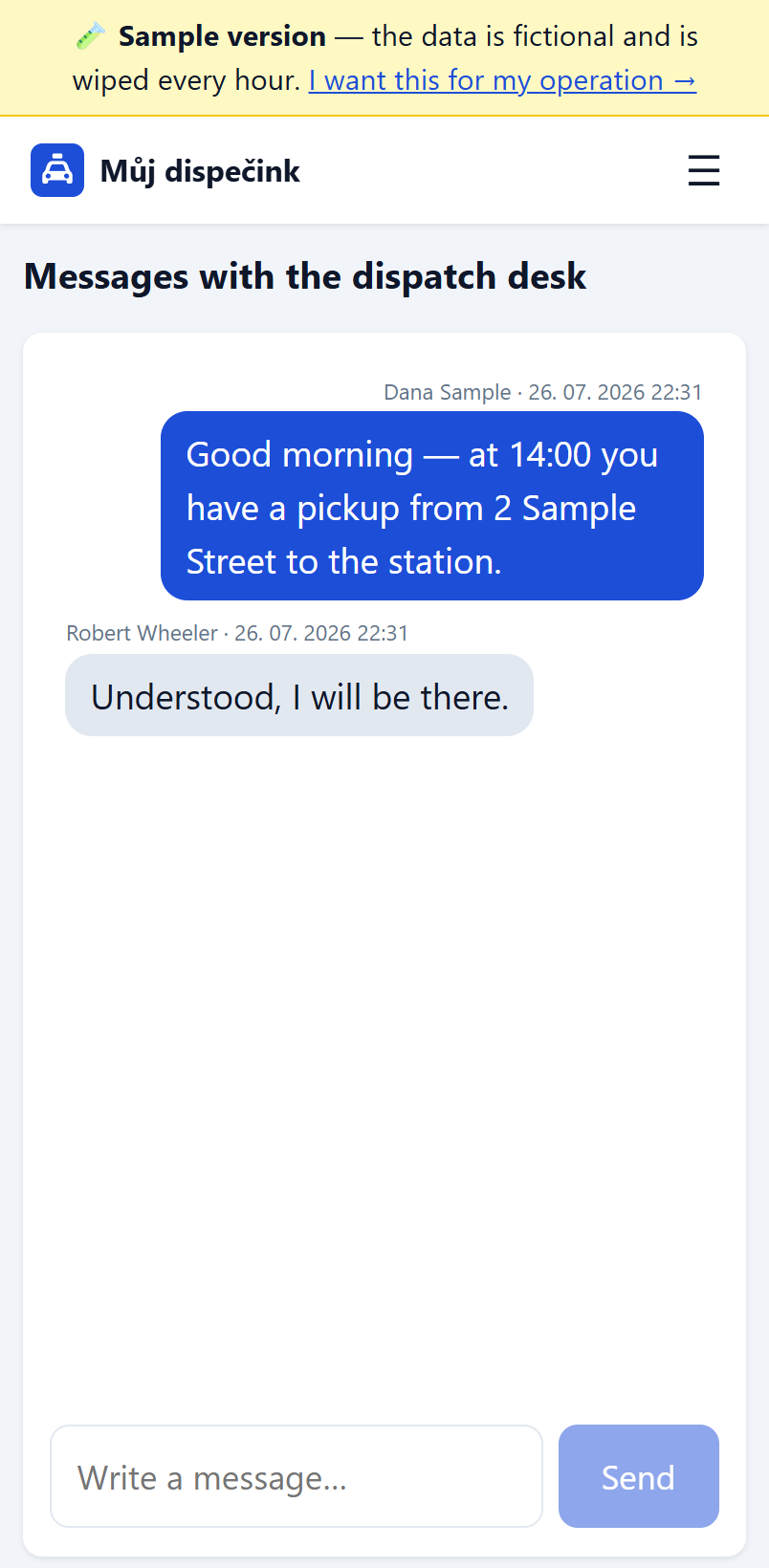
- Tap Messages at the top. When a red number is showing next to it, you have unread messages from the dispatch desk.
- Write your message at the bottom and tap Send.
👀 What you will see: your messages are grey on the left, the dispatch desk's messages are blue. The reply appears by itself, you do not have to refresh anything.
📌 Do not write while driving — stop, or make a call instead. You always write to the whole dispatch desk — whoever is on duty replies.
How to look at older rides
- Tap My history at the top.
How to change your password
- Tap ☰ at the top and then your name.
- Type your current password, then the new password twice (at least 8 characters).
- Tap Change password.
I have forgotten my password
Do not worry, nothing is lost. Call your administrator — they will read out a temporary password to you. Sign in with it and the application will immediately ask you to choose your own new password (type it twice). The detailed procedure is in the frequently asked questions below.